How to use ContextStore with Claude Desktop

Every time you start a conversation with Claude, you're starting from zero. It doesn't know your product vision, your brand guidelines, or what you decided in last week's strategy session. So you copy and paste. Every time. ContextStore and Claude Desktop's Cowork feature fix this by giving Claude direct access to your context repository — the collection of documents that define your project.
In this tutorial, I'll walk you through connecting the two. By the end you'll have Claude reading from your ContextStore space and helping you co-create new documents along the way.
What you'll need
Before we start, make sure you have both apps installed:
- ContextStore with at least one space created. If you haven't joined the beta program yet, you'll need to do that and download the app. Sign up for the beta program. Once you have the app installed, create your first space.
- Claude Desktop on your Mac. You'll need the latest version. Download it from claude.ai/download.
Find your space folder
Every ContextStore space is backed by a regular folder on your Mac. To find it, open ContextStore. Then click the gear icon ⚙ in the lower left corner to open Settings.
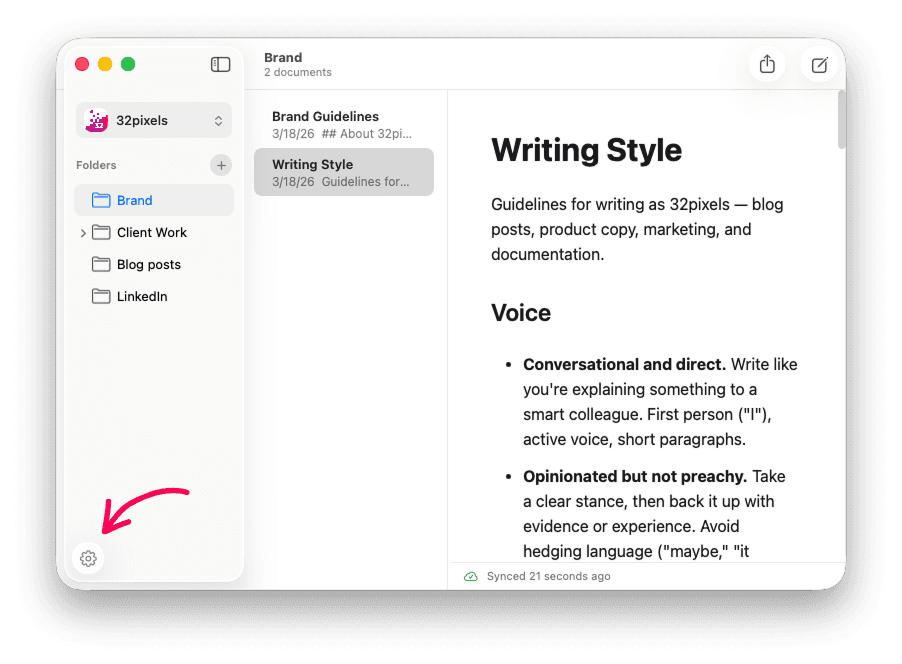
Once Settings is open click on the Spaces tab (if it's not already selected) and click on the space you want to share with Claude.
You'll see the folder path under the Location label:
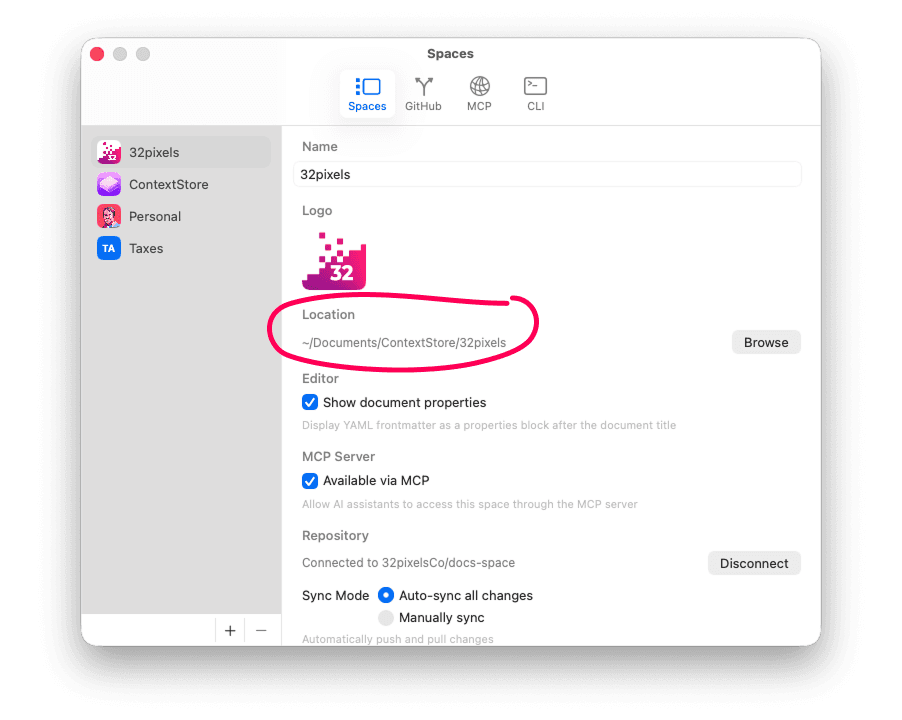
Note this location — you'll navigate to this folder in the next step.
Grant Cowork access
Open Claude Desktop and click the Cowork tab in the center of the title bar:
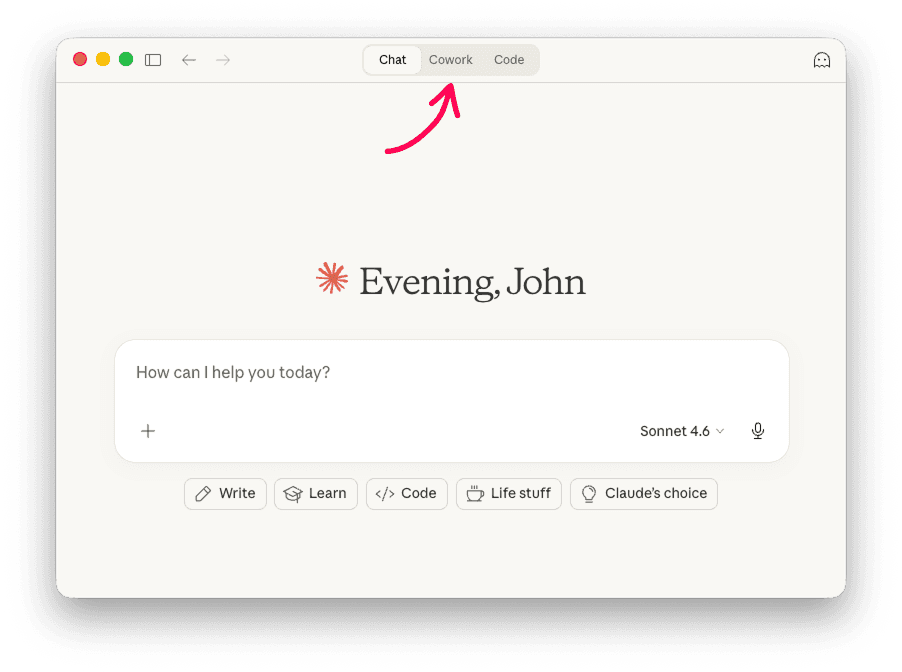
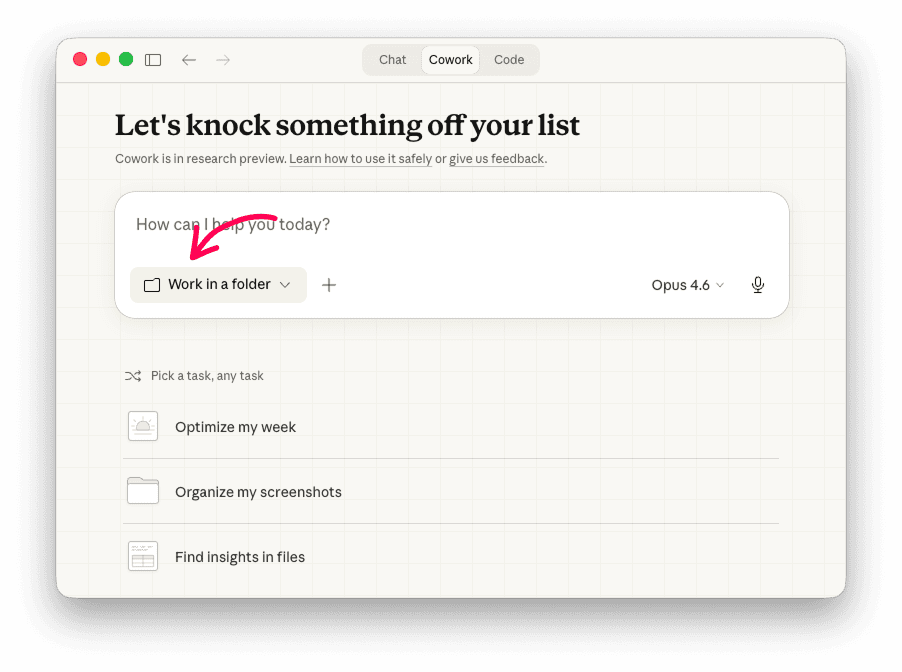
This opens the Cowork panel. Click Work in a folder and select your ContextStore space folder.
Note: Beta users may need to find the folder inside the TestFlight sandbox. Navigate to Home > Library > Containers > co.32pixels.ContextStore > Data. The Data folder mirrors your Home directory. If your space path was in Documents, open Documents from there and select the correct folder.
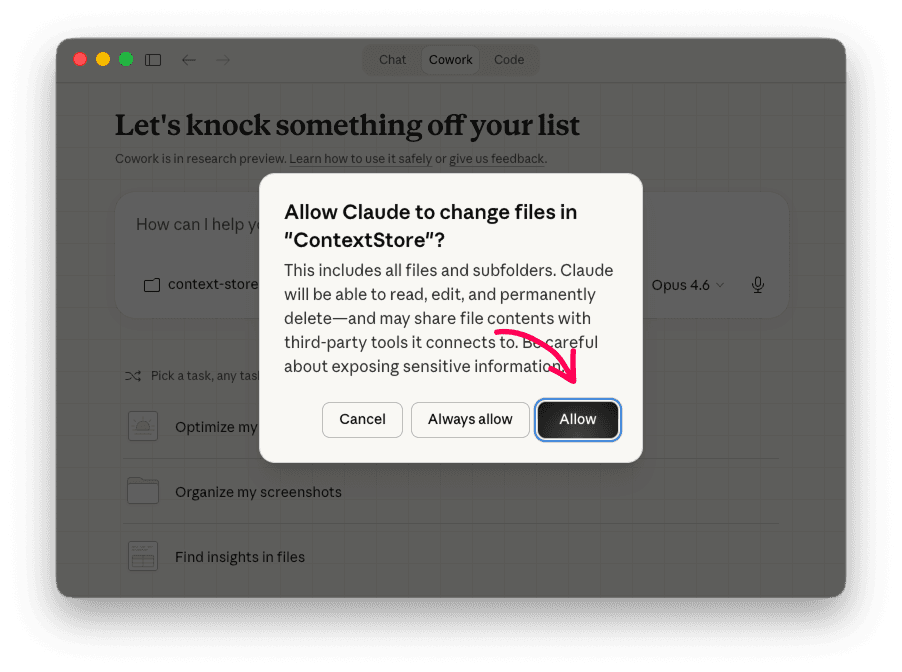
Claude will ask for permission to access the folder. Click Allow.
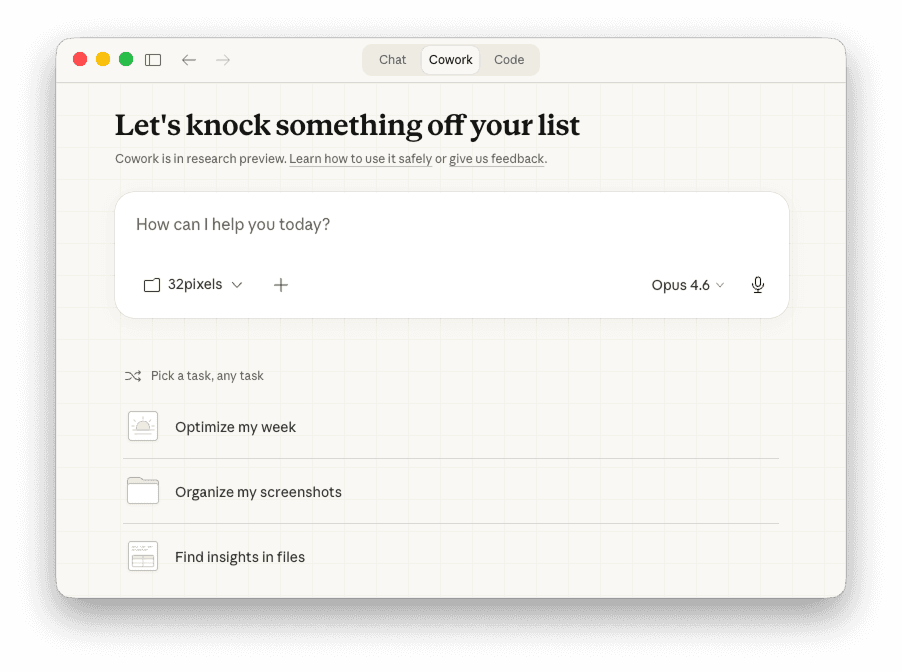
Once granted, you'll see your space name in the input area:
Claude can see every document in your space. Try asking it:
What documents are in my project here?What documents are in my project here?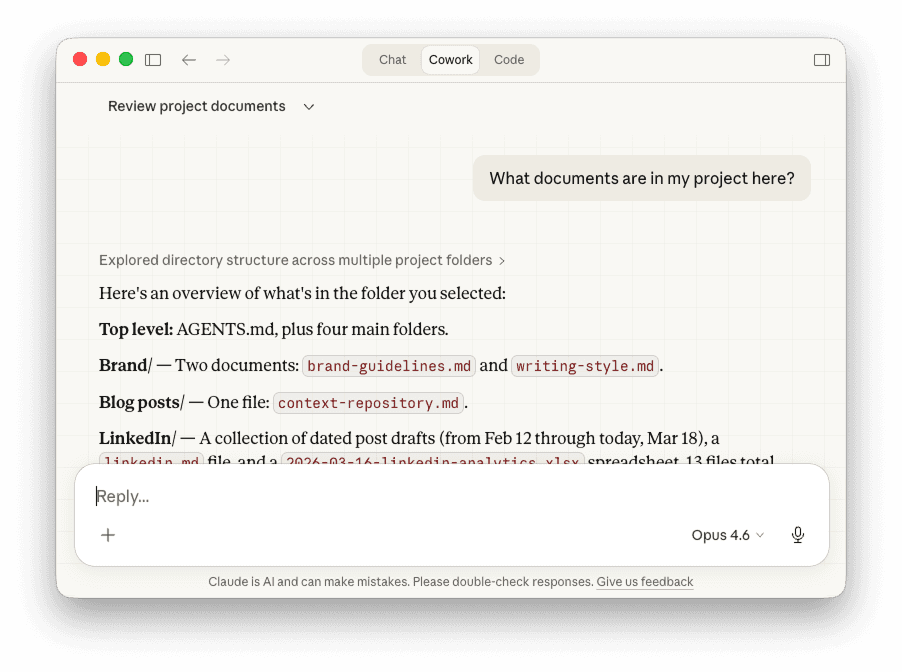
Claude will list the files it can see. If your space has existing documents, you're all set. If it's mostly empty, that's fine — we'll create some together next.
Co-create your first documents
This is where it gets fun. Claude is an excellent co-creator. The trick is to have a conversation about what you're working on and let Claude help you articulate it into structured documents.
Think about the big picture. What are the orienting documents that would help someone — or an AI — understand your project? The answer depends on what kind of work you do.
Planning a product? Start with:
- Vision — What are you building and why? What problem does it solve?
- Architecture — How is the system structured at a high level?
- Roadmap — What are you building in the next few weeks or months?
Working in marketing? Start with:
- Positioning — How does your product fit in the market? Who are the competitors?
- Branding — What's the visual identity? What are the brand values?
- Writing style guide — What tone and voice should copy use?
Running a team? Start with:
- Team charter — What's the team's mission and how do you work together?
- Process docs — How do you plan, review, and ship work?
- Glossary — What terms does your organization use internally?
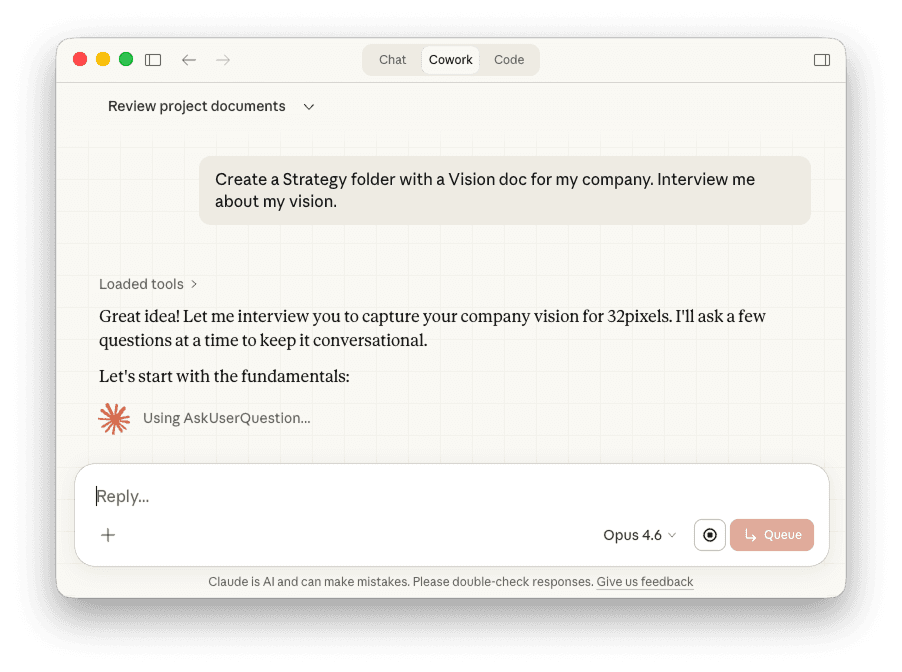
Pick one and tell Claude about it. For example:
Create a Strategy folder with a Vision doc for my company. Interview me about my vision.
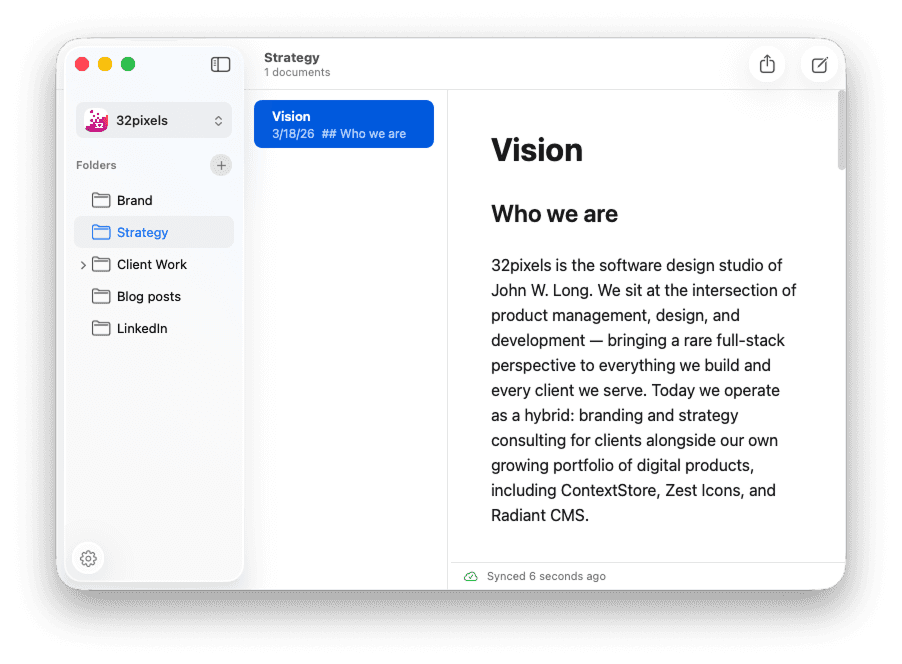
Claude will draft something for you. Review it, ask for changes, and iterate until it feels right. Then ask Claude to save it directly to the folder — because you granted Cowork access, it can write files to your space.
Switch back to ContextStore and you'll see the new document appear in your space.
Put your context to work
Once your space has a few key documents, the dynamic shifts. Claude stops guessing and starts referencing. Ask it to draft a document based on context it already has — a feature spec informed by your vision, a brief that references your brand guidelines, or talking points pulled from your roadmap. Because Claude can read everything in your space, it connects the dots across documents without you having to copy and paste context into every prompt.
You can also ask Claude to update existing documents. As your thinking evolves, tell Claude what's changed and ask it to revise the relevant files. Or edit them yourself directly in ContextStore — either way, your context repository stays current.
Why local files matter
Because ContextStore keeps everything as local files, Claude reads your documents in milliseconds. No API call, no network latency, no token overhead from tool schemas. And because it's Markdown, the files are token-efficient — no rich-text metadata, no block structures, just content.
Next steps
Once you're comfortable with the basics, try these:
- Add an AGENTS.md — If you also use Claude Code, ask Claude to create an AGENTS.md that links to documents in your ContextStore space. This gives coding agents access to the same context.
- Sync to GitHub — Connect your space to a GitHub repo in ContextStore's settings. Your documents get versioned automatically, and your whole team can contribute.
- Expand your context — Add competitive analysis, integration specs, or meeting notes. Every document you add makes Claude's responses more informed.
Start with one space, a couple of documents, and a conversation. You might be surprised how quickly it becomes indispensable.
Comments
You might also like…
If software becomes ephemeral
John LongAIWhen software can be conjured from a conversation, the real differentiator won't be the code — it'll be the taste, the brand, and the vision behind it.

Create a daily brief with Claude scheduled tasks and ContextStore
John LongAII built an autonomous research assistant using Claude scheduled tasks and ContextStore. It scans my projects, picks topics itself, and delivers a daily brief every morning. Karpathy recently posted about a similar workflow in Obsidian — nice validation that this pattern is taking hold.

Generating ASCII wireframes and flowcharts with Claude
John LongAIASCII wireframes and flowcharts are one of the most practical things you can ask Claude to generate. I use them for UI tasks, dev plans, and increasingly as the design artifact itself.
Three areas of AI innovation
John LongAIAI is advancing on three areas at once. Better models, better harnesses, and better hardware. Understanding how they work together helps you make sense of where things are headed.