Introducing the ContextStore CLI

Your context repository might span multiple spaces — Product, Marketing, Engineering. But when you're working in a coding agent, it only sees the current project directory. Your product vision is in one space. Your brand guidelines are in another. Your engineering architecture docs are in a third. The agent has no idea any of it exists.
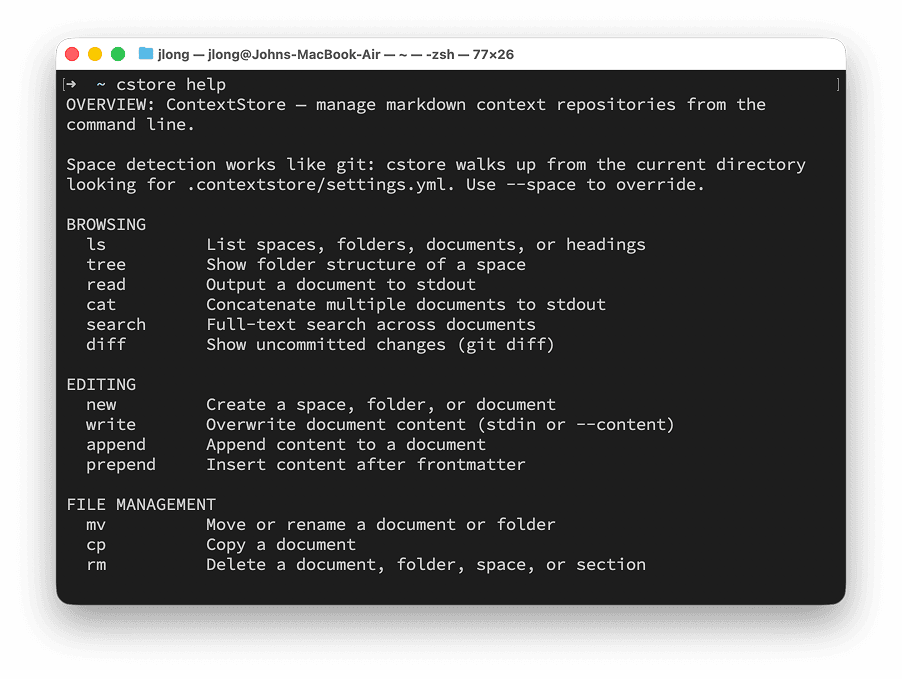
The ContextStore CLI fixes this. Run cstore from any directory and your agent can browse, search, read, and write documents across all your spaces. No folder permissions to grant. No paths to remember. Just context, available everywhere.
A quick tour
Install ContextStore and the CLI is included. Run cstore help to see what's available. Here are the commands you'll use most:
List your spaces and documents:
cstore ls                      # list all spaces
cstore ls Product --stats      # list docs in a space with word counts
cstore tree Product            # show the full folder structure
cstore ls # list all spaces
cstore ls Product --stats # list docs in a space with word counts
cstore tree Product # show the full folder structureRead documents:
cstore read Product/vision.md           # full document
cstore read Product/roadmap.md --head 20  # just the first 20 lines
cstore read Product/vision.md # full document
cstore read Product/roadmap.md --head 20 # just the first 20 linesSearch across everything:
cstore search "onboarding"              # full-text search
cstore search "PIX-\d+" --regex         # regex search
cstore search "auth" --folder Product   # scope to a folder
cstore search "onboarding" # full-text search
cstore search "PIX-\d+" --regex # regex search
cstore search "auth" --folder Product # scope to a folderConcatenate documents for bulk context:
cstore cat Product/ --headers # dump all docs in a foldercstore cat Product/ --headers # dump all docs in a folderTrack tasks:
cstore tasks Product/ --pending   # show incomplete checkboxes
cstore check Product/roadmap.md "Launch beta"  # mark one done
cstore tasks Product/ --pending # show incomplete checkboxes
cstore check Product/roadmap.md "Launch beta" # mark one doneThe CLI also supports creating, editing, moving, and deleting documents. Run cstore help <command> for details on any command.
Why this matters for agents
The real power of cstore is what it enables for your AI agent. When an agent has access to cstore, it can pull context from any space without you having to set up folder access or copy files around. Working on a feature in your codebase? The agent can cstore read Product/vision.md to understand why the feature matters. Writing marketing copy? It can cstore search "brand voice" --space Marketing to find your style guide.
This works because cstore operates like git — it walks up from the current directory looking for a .contextstore/settings.yml file, and it can target any space by name with the --space flag. Your agent doesn't need to know where files live on disk.
Get started
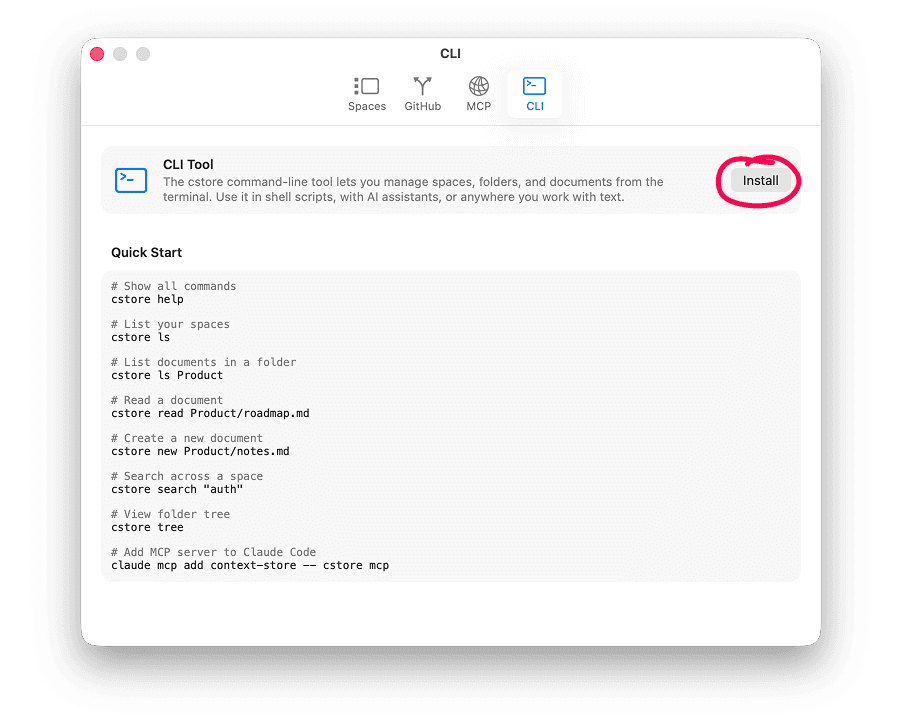
The CLI ships with ContextStore but needs a one-time install. Open ContextStore, click the gear icon in the lower left to open Settings, then click the CLI tab. Click Install to open the install dialog.
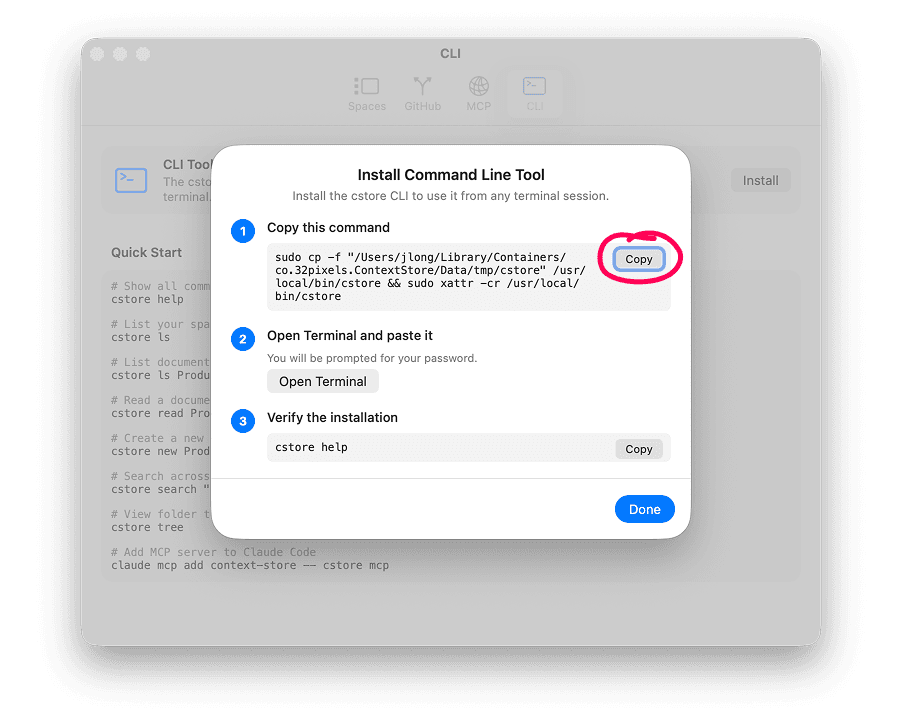
The dialog walks you through three steps: copy the install command, paste it into Terminal (you'll be prompted for your password), and verify with cstore help.
Once installed, try:
cstore helpcstore helpYou should see a list of all available commands. From there, try reading a document or searching for a term. Once you're comfortable, tell your agent about it. Add a note to your AGENTS.md that cstore is available, what spaces it can access, and which documents matter most — like your Vision, Roadmap, and key Specs. That's all the agent needs to start pulling in the right context on its own.
Comments
You might also like…
If software becomes ephemeral
John LongAIWhen software can be conjured from a conversation, the real differentiator won't be the code — it'll be the taste, the brand, and the vision behind it.

Create a daily brief with Claude scheduled tasks and ContextStore
John LongAII built an autonomous research assistant using Claude scheduled tasks and ContextStore. It scans my projects, picks topics itself, and delivers a daily brief every morning. Karpathy recently posted about a similar workflow in Obsidian — nice validation that this pattern is taking hold.

Generating ASCII wireframes and flowcharts with Claude
John LongAIASCII wireframes and flowcharts are one of the most practical things you can ask Claude to generate. I use them for UI tasks, dev plans, and increasingly as the design artifact itself.
Three areas of AI innovation
John LongAIAI is advancing on three areas at once. Better models, better harnesses, and better hardware. Understanding how they work together helps you make sense of where things are headed.